Think of it as Yoga for the brain, we are going to stretch a bit.
Here’s How You Can Customize Your Own AI Command Center – How I modified HERDR
I used ChatGPT and Codex to modify an open-source application, redesign its interface, and add features I wanted — without personally writing the Rust code.
There’s something extraordinary happening in software development, and I don’t think most people have fully grasped its implications.
For decades, when you found a software program you liked but wished it did something differently, you had three choices: live with it, ask the developer to change it, or learn enough programming to modify it yourself.
Artificial intelligence has introduced a fourth option: explain what you want to an AI coding agent and have it help you build it.
That’s exactly what I recently did with a program called HERDR.
And I’m going to show you how, including the prompts I used.
First, what is HERDR?
HERDR is an open-source terminal environment designed for managing coding agents such as OpenAI Codex and Claude Code.
Instead of juggling dozens of terminal windows across different computers, HERDR gives you a centralized environment where you can organize projects, create terminal panes, connect to remote machines, and keep track of your AI agents.
I have a fairly substantial development environment, with numerous Linux servers, software projects, and AI agents doing different jobs.
At the time of this customization, HERDR was managing approximately 29 saved remote machine profiles in my environment.
I liked the program immediately.
But I wanted to change some things.
And instead of waiting for someone else to implement them, I decided to try using AI to modify HERDR myself.
What I wanted to change
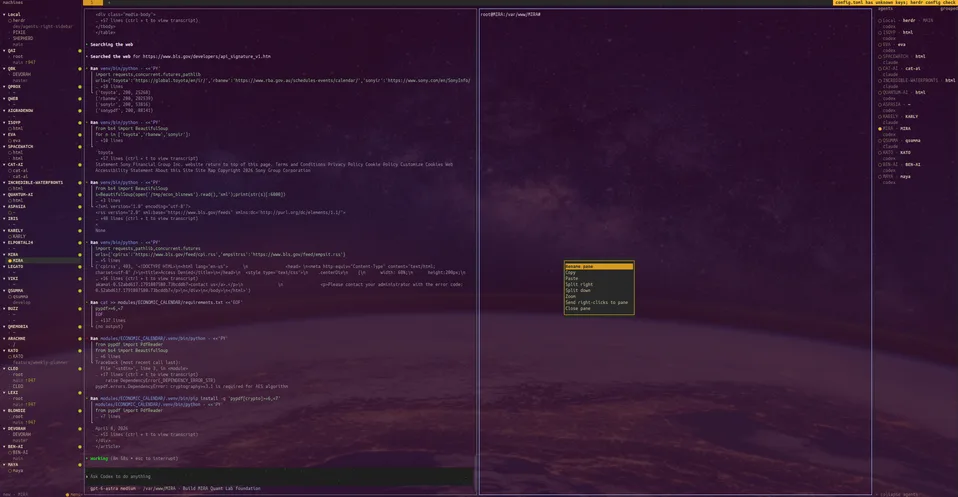
The original interface placed the machine list and the agent list together in a left sidebar.
That works well with a small number of machines. But with a growing collection of servers, projects, and AI coding agents, I wanted more room and better organization.
My idea was simple:
Put Machines on the left, working terminals in the center, and AI Agents on the right.
I also wanted both sidebars to be independently resizable and the Agents panel to be collapsible.
Later, I decided to improve the right-click menus with Copy/Paste, installation and updating of AI tools, system information, and SSH diagnostics.
Here’s how it unfolded.
Step 1 — Install HERDR and prepare a development environment
HERDR’s source code is publicly available on GitHub. That matters because the AI can inspect and modify the actual software instead of guessing how it works.
The official HERDR installation command for Linux is:
curl -fsSL https://herdr.dev/install.sh | sh
You also need an AI coding tool. I used OpenAI Codex, although a similar workflow could be attempted with Claude Code or another capable coding agent.
My development computer is an Ubuntu workstation called OMEN.
I created a dedicated directory for modifying HERDR:
If you’re starting from scratch, you can clone the source:
git clone https://github.com/herdrdev/herdr.git
cd herdr
git switch -c dev/agents-right-sidebar
In my case, Codex established a development branch based on the installed HERDR 0.9.1 release, keeping it separate from the original software.
Important: Don’t immediately replace your installed program with experimental code.
I wanted the original HERDR to continue running while we developed a modified version.
That turned out to be one of the most important decisions in the entire project.
Step 2 — Let AI inspect the software before modifying anything
I opened Codex in a separate Konsole window, outside HERDR.
Why outside HERDR?
Because modifying the application you’re currently using creates an obvious problem: if something crashes, you can lose your development interface.
From the source directory, I started Codex:
cd /var/HERDR/herdr
codex
Here was my initial instruction.
PROMPT 1 — Inspect HERDR and prepare the modification
I want to modify the HERDR terminal interface.
First, identify the installed HERDR version, locate its official source repository, and determine how it was installed on OMEN.
Prepare a local Git checkout under /var/HERDR on a separate development branch.
Our objective is to move the Agents panel to the right side of the screen, keep Machines on the left, and keep terminal panes in the center.
For now, inspect the code and explain the required changes before modifying anything.
Preserve the existing HERDR installation, configuration, and running sessions.
This first instruction didn’t ask Codex to start changing everything.
It asked Codex to investigate.
Codex identified the Rust source files responsible for rendering the interface, calculating screen dimensions, handling mouse events, and managing the existing sidebar.
It explained that this was primarily a client-interface modification and shouldn’t require changing the underlying session storage or server protocol.
That gave us a workable implementation plan.
Lesson number one: Ask AI to understand the system before asking it to change the system.
Step 3 — Make the interface three columns
Now that Codex understood the architecture, I gave it the implementation instructions.
PROMPT 2 — Build the three-column HERDR layout
HERDR — Implement Three-Column Interface
Proceed with implementation and testing on the existing dev/agents-right-sidebar branch.
Modify HERDR’s terminal interface to use three columns:
LEFT — Machines
Keep the Machines and workspace navigation on the left. Use approximately 20–25 terminal columns by default.
CENTER — Terminal Panes
Keep the existing terminal panes and tabs in the center, occupying all remaining available space.
RIGHT — Agents
Move the complete Agents section to a dedicated panel on the right, approximately 25–35 columns wide by default.
Requirements:
Make both sidebars independently resizable using the mouse.
Make the Agents panel independently scrollable.
Allow the Agents panel to be collapsed and expanded.
Preserve existing agent names, statuses, machine associations, and selection functionality.
Preserve keyboard shortcuts, mouse interactions, terminal resizing, and active terminal focus.
Handle narrow terminal windows gracefully, keeping the center terminal usable.
Preserve the existing server protocol and session storage.
Add regression tests for layout geometry, resizing, terminal coordinates, and mouse interaction.
Safety requirements:
Do not modify the installed production HERDR executable.
Do not stop or restart existing HERDR processes.
Do not disrupt existing Codex or Claude sessions.
Build a separate development executable under /var/HERDR.
Run the appropriate Rust tests.
Commit successful changes to the development branch.
When finished, report the files changed, test results, executable location, and exact command to launch the development version in a separate Konsole window.
Do not install the modified version over production yet.
And then I let Codex work.
It inspected the source, modified the layout calculations, adjusted rendering and mouse handling, and built a new executable.
The initial three-column modification passed 3,648 Rust tests, with six skipped.
My new executable was created at:
/var/HERDR/bin/herdr-dev
I launched it in a separate window and looked at the result.
It worked. Machines on the left. Terminal panes in the middle. Agents on the right.
And the original program was still intact.
That was the moment this experiment started getting interesting.
Step 4 — Add Copy and Paste to the right-click menu
Once I saw how effectively AI could modify HERDR, I started thinking about other improvements.
One was the terminal’s right-click menu.
It already had options such as Rename Pane, Split Right, Split Down, Zoom, and Close Pane.
I wanted Copy and Paste in that menu too.
This was more complicated than simply adding two labels. Terminal applications have their own mouse handling, clipboard mechanisms, and interactions with the operating system.
PROMPT 3 — Add right-click Copy and Paste
HERDR Enhancement — Right-Click Copy and Paste
Continue working on /var/HERDR/herdr, using our existing development branch dev/agents-right-sidebar.
The three-column layout is working correctly.
I now want to improve the terminal pane context menu.
Requirements:
Add Copy and Paste immediately below Rename Pane in the right-click context menu.
Allow users to select terminal text using the mouse.
Copy selected text to the operating system clipboard.
Paste clipboard contents into the specific terminal pane where the user right-clicked.
Support the Ubuntu desktop clipboard, including Wayland and X11 where available.
Clipboard operations must work with local and remote sessions.
Preserve line breaks when copying multiple lines.
Use existing bracketed-paste handling where supported and reject unsafe control characters.
Preserve all existing mouse operations, including pane selection, resizing, and dragging.
Preserve the existing three-column interface.
First inspect HERDR’s existing clipboard support, text selection handling, and terminal mouse capture.
Reuse existing functionality where possible instead of duplicating it.
Clipboard operations should occur on the local HERDR client, not on the remote server.
Add regression tests.
Do not replace the production executable or restart existing sessions.
Build and test the updated development executable separately.
Commit completed work to Git.
Codex implemented the menu actions.
The result was straightforward: right-click a pane, choose Copy or Paste, and use the desktop clipboard.
The clipboard changes passed their targeted tests.
One broader test run reported 3,653 tests passed, six skipped, and one failure involving an agent-start timing condition that could also be reproduced with the older executable.
That distinction is important.
A good AI-assisted development process doesn’t simply say everything passed. It identifies what passed, what failed, and whether a failure is actually related to the new code.
Step 5 — Turn the machine right-click menu into an AI management tool
By now, I was thinking beyond the screen layout.
I was managing AI coding agents on multiple machines.
Why should I have to remember installation commands, update commands, or manually check every server’s development environment?
Why not right-click a machine and handle those tasks directly?
The existing menu contained Rename and Close.
I wanted to preserve those actions at the top, then add management features underneath.
My proposed menu was:
┌──────────────────────────────┐
│ Rename                       │
│ Close                        │
│ ──────────────────────────── │
│ Reconnect                    │
│ ──────────────────────────── │
│ AI Development Tools         │
│ Machine Information          │
│ SSH Diagnostics              │
└──────────────────────────────┘
But I also wanted AI to understand an important distinction: these commands must run on the machine I right-clicked, not accidentally on my local workstation.
Imagine thinking you’re installing Codex on a remote server, only to discover that HERDR executed the command on your desktop instead.
That is exactly the kind of problem a carefully written prompt should anticipate.
PROMPT 4 — Add AI Development Tools and machine management
HERDR — Stage 1: AI Development Tools
Continue development in /var/HERDR/herdr on the existing dev/agents-right-sidebar branch.
Objective: Extend the machine/workspace right-click menu with AI development tools, machine information, and SSH diagnostics.
Main menu — exact order:
Rename
Close
Reconnect
AI Development Tools
Machine Information
SSH Diagnostics
Place separators after Close and Reconnect.
Preserve existing Rename and Close behavior. Do not change the separate terminal-pane context menu.
AI Development Tools submenu:
Check Installed Agents
Install Claude Code
Install Codex
Update Claude Code
Update Codex
Update Both
Launch Claude Code
Launch Codex
Refresh Agent Status
Use existing TUI components. If nested submenus are unreliable, use secondary popups.
Agent detection
Detect Claude Code, Codex, Git, Python, Node.js, npm, and curl on the selected machine.
Report installed versions and executable locations.
Distinguish Installed, Not Installed, Disconnected, Unsupported, and Detection Failed.
Run detection asynchronously with bounded concurrency, timeouts, and caching so the interface remains responsive.
Install Claude Code
Use the official installer:
curl -fsSL https://claude.ai/install.sh | bash
Install Codex
Use the official installer:
curl -fsSL https://chatgpt.com/codex/install.sh | sh
Verify the current installer availability and compatibility before use.
Installation must target the selected machine and account.
Show the target, command, and confirmation dialog before execution.
Display installation output in a terminal.
Verify the resulting executable and version.
Never install automatically, silently use sudo, or execute a remote installation on the local client.
Agent updates
Detect how each agent was installed before selecting its update mechanism.
Support updating Claude, Codex, or both.
Display the command and request confirmation.
Never perform automatic background updates.
Agent launching
Reuse HERDR’s existing agent and session management.
Launch the selected agent in the selected workspace’s configured directory.
Support new sessions and resuming existing sessions where available.
Newly launched agents must appear in the existing Agents panel.
Preserve running sessions.
Machine Information
Create a read-only dialog displaying:
Hostname and operating system
CPU model and core counts
Total and available RAM
Disk capacity and free space
GPU information where available
System uptime and resource utilization
Use standard Linux system interfaces and utilities.
Do not install monitoring software.
SSH Diagnostics
Create a read-only diagnostics dialog that checks:
TCP connectivity
SSH authentication
HERDR handshake
Remote shell access
Workspace directory access
Connection latency
Display actionable error messages without exposing credentials.
Reuse HERDR’s existing SSH configuration and connection mechanisms.
Do not modify SSH services or automatically repair remote systems.
Development and testing
Implement read-only features first, then installation, updates, and launching.
Run focused tests followed by broader regressions.
Use mocked or isolated execution for installer tests.
Do not execute real installations or updates during automated testing.
Preserve all production binaries, configurations, remote machines, and running sessions.
Work on the development branch, commit completed stages, and report test results and limitations.
Do not replace the production HERDR executable or restart existing servers.
This was a much larger change than moving a sidebar.
Codex added menus, secondary popups, asynchronous software detection, read-only system information, SSH diagnostics, and command-routing functionality.
The development build was created as:
ver2026.10.11.12.56
The feature implementation was complete enough for me to test the interface, although the full regression suite and real installation workflows had not been completely validated.
And that’s another lesson: a feature appearing in the menu is not the same as the feature being fully tested in production.
Step 6 — Connect the modified HERDR to my existing sessions
There was one additional complication.
I had deliberately kept the development HERDR separate from my original installation.
That protected my existing work, but it also meant the development version initially had its own configuration and sessions.
I didn’t want to recreate all my machines, workspaces, or running AI agents.
I wanted the new interface to connect to my existing HERDR server.
PROMPT 5 — Connect the new client without migrating sessions
HERDR — Connect Modified Client to Existing Production Sessions
Our modified development version works correctly.
I want to access my existing HERDR machines, workspaces, terminal sessions, and Codex/Claude agents through the new three-column interface.
Connect the modified client to the currently running production HERDR server rather than migrating or restarting sessions.
Identify the production HERDR server, connection endpoint, configuration, and session storage.
Inspect the development launcher and its environment isolation.
Verify protocol compatibility between the modified client and production server.
Determine how to launch the modified binary as a client without starting or replacing the server.
Use the existing production machine definitions, workspaces, sessions, and agents.
Preserve all currently running local and remote sessions.
Do not copy live session databases or attempt to migrate running terminal processes.
Do not stop either server or modify the installed production executable.
The launcher must connect to the existing production environment without accidentally connecting to the isolated development server.
Verify compatibility before launching.
If direct compatibility is unavailable, report alternatives without modifying production.
Codex created a separate launcher for my customized interface.
It subsequently reported successful handshakes with the local production endpoint and all 29 saved remote profiles, while preserving the existing production server.
From then on, I could launch the modified version using:
Identify every normal HERDR launch method, including desktop entries, application shortcuts, shell functions, aliases, and executable paths.
Determine why the old interface launches after reboot.
Make the customized client the permanent default interface for normal interactive use.
Preserve the original binary for server operations and rollback.
Commands with arguments, such as herdr server, must retain their existing production behavior.
Do not stop existing sessions, replace production binaries, or create duplicate servers.
Verify fresh interactive and login-shell behavior.
Provide a rollback command.
Codex determined that the desktop launchers were already correct, but the Bash command still routed to the old executable.
It corrected that distinction.
Now typing:
herdr
in a new Konsole opens my customized interface, while commands with arguments still use the original production executable.
The original binary remains available as a fallback.
That’s an important point: the simplest way to customize software isn’t always to replace the original executable. Sometimes it’s safer to change how the customized client is launched.
What didn’t go perfectly
I don’t want to give the impression that this was one prompt followed by instant perfection.
It wasn’t.
During development, a window crashed.
The logs showed an out-of-memory event involving Chromium while Rust compilation was demanding memory. That didn’t conclusively establish the cause of the development window crash, but it was enough to make resource management a priority.
I restarted Codex and instructed it to recover the existing Git changes before modifying anything further.
We also encountered a timing-sensitive Rust test failure and, later, a configuration warning about unknown keys.
Those are normal engineering problems.
The difference is that AI could help inspect the logs, trace the behavior, identify relevant code, and propose corrections.
I still had to review the results and decide what to do next.
AI-assisted programming does not eliminate debugging, testing, backups, or common sense.
If anything, the faster AI can make changes, the more important those disciplines become.
What I learned from this experiment
There are several lessons I would pass along to anyone attempting something similar.
First, use open-source software where possible. Having access to the source code makes this kind of customization far more practical.
Second, start with the smallest useful change. We began by moving a sidebar. We didn’t initially try to build an entire system-management platform.
Third, make your instructions specific. I didn’t just say, “Make HERDR better.” I described precisely what should appear on the left, center, and right, what the right-click menu should contain, and how remote commands should behave.
Fourth, protect the original program. Separate Git branches, development executables, backups, and rollback options made experimentation considerably safer.
Fifth, make AI test its own work. Compiling successfully doesn’t prove a program works. And even thousands of passing tests don’t guarantee that every interaction or deployment scenario is correct.
Finally, understand that you are directing the work, not surrendering control of it.
You need to know what you want, recognize when something is wrong, and understand enough about the system to evaluate the results.
You don’t necessarily need to personally type every line of code anymore.
That is a remarkable change.
Think about what this means beyond HERDR
HERDR happens to be an excellent example because it’s a tool I use every day.
But think about the broader implications.
How many times have you used a program and thought:
I wish this button was somewhere else.
I wish this software would display one more piece of information.
Why can’t I add this feature?
Why doesn’t this application work the way I work?
In the past, those wishes often went unanswered unless a developer agreed to implement them.
Now, with source code access and capable AI coding agents, customization becomes much more accessible.
Not necessarily easy. Not automatically safe. And certainly not guaranteed to work on the first attempt.
But accessible in a way it simply wasn’t before.
I used ChatGPT to help design the requirements and write detailed prompts. I used Codex to inspect, modify, build, and test the Rust software. I reviewed the results, tested the interface, and kept refining it.
What started as moving the Agents panel from one side of the screen to the other evolved into a customized development interface with additional machine and AI management capabilities.
I didn’t need to become an expert Rust developer before attempting it. I needed an idea, a working understanding of my environment, and the ability to direct and evaluate the AI’s work.
To me, that’s the real story.
We’re moving from a world where software users adapt themselves to applications toward a world where more users can adapt applications to themselves.
And for entrepreneurs, developers, technically curious people, and small businesses, that opens up extraordinary possibilities.
One final thought
Some people use AI to answer questions.
Others are starting to use AI to build and modify the systems they depend on.
The difference is enormous.
We’re not just learning how to use artificial intelligence. We’re learning how to turn our ideas into working software.
And that, to me, is freaking amazing.
And BTW this whole process took 2 hours from concept to working system which is amazing all on its own.
HERDR is an independent open-source project. The modifications described here were made to my own development copy, not to the official HERDR release. Commands, source structure, and compatibility may differ with newer versions. The prompts are reproduced and consolidated from my development sessions; they are intended as a starting point, not a guarantee of identical results.